Beautiful.ai Features: Complete Guide
A verified guide to Beautiful.ai features, including Smart Slides, AI presentation creation, branding, collaboration, exports, analytics, and limitations.

Direct answer
Beautiful.ai is a presentation platform built around adaptive Smart Slides, guided AI deck creation, reusable themes, media and data tools, collaboration, sharing, analytics, and paid-plan exports. Its feature set is strongest for recurring business presentations where speed and consistency matter more than unrestricted canvas control.
The product does more than generate slides. It combines creation, formatting, brand governance, team resources, delivery, and engagement tracking in one workflow. The main trade-off is that its design system deliberately constrains placement to protect visual consistency.
This guide uses official Beautiful.ai sources checked on August 23, 2026. It does not claim hands-on testing. Feature availability can vary by plan and may change, so buyers should verify critical requirements before purchasing.
Beautiful.ai features at a glance
| Feature area | What it does | Buyer question |
|---|---|---|
| Smart Slides | Adapts layout as content changes | Do the guardrails fit your hardest slides? |
| AI creation | Helps plan, draft, rewrite, translate, and visualize presentations | How much human review will be required? |
| Themes and branding | Applies colors, fonts, logos, icons, and footers | Can your full brand system be represented? |
| Media and data | Adds images, video, icons, charts, and linked data | Are required sources and formats supported? |
| Collaboration | Supports shared workspaces, permissions, folders, and live editing | Which roles need paid seats? |
| Libraries and governance | Centralizes slides, templates, assets, and controlled content | Who owns and updates the library? |
| Sharing and analytics | Publishes links and tracks presentation engagement | Are analytics sufficient for your use case? |
| Export | Produces PowerPoint, Google Slides, PDF, images, or offline output | What fidelity is lost outside Beautiful.ai? |
Smart Slides: the core design system
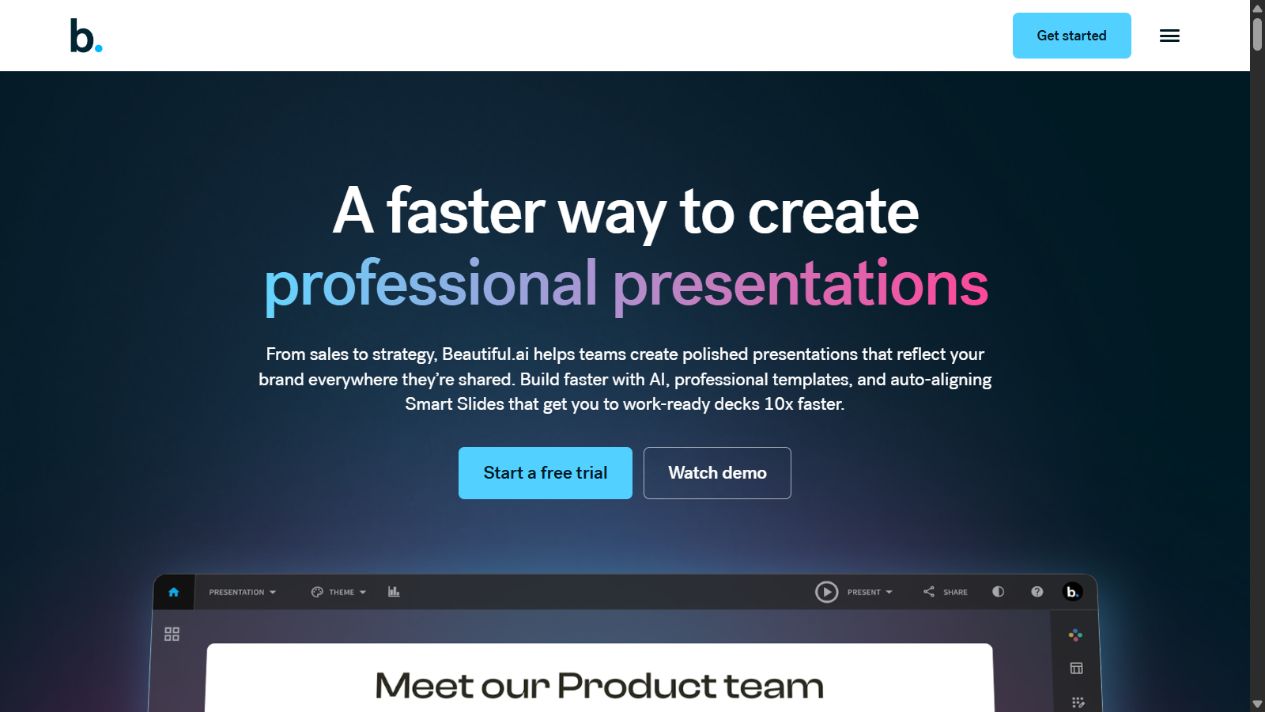
Smart Slides are the defining Beautiful.ai feature. They are pre-structured layouts that automatically adjust spacing, alignment, sizing, and animation as content is added or removed. The goal is to reduce manual formatting while keeping the slide visually coherent.
This mechanism can help people who understand their message but do not want to manage every text box. A user can select a layout for a timeline, comparison, process, chart, team, or other communication pattern and focus on content.
The benefit is consistency. The limitation is freedom. Smart Slides may resist a layout that falls outside their intended pattern. Official material also references Classic Slides for greater flexibility, but buyers should test the balance themselves.
How to evaluate Smart Slides
Do not judge Smart Slides only with a simple title or three-column slide. Build the slides your team finds hardest:
- A dense product comparison with exceptions.
- A financial slide with several metrics and a source note.
- A roadmap with overlapping workstreams.
- A customer case study combining quotes, results, and context.
- A regulated or legal slide with required disclaimers.
If the layout remains readable without repeated workarounds, the feature may save meaningful time. If every complex slide needs manual reconstruction, the guardrails become a cost.
AI presentation creation
Beautiful.ai describes a guided generation process rather than only a single prompt box. A user can begin with a topic or outline, add source material, refine the story, choose visual direction and themes, then generate and revise the presentation.
The platform also lists AI-assisted text, image, rewriting, and translation capabilities. These can accelerate a first draft, but generated output still needs editorial review. Presentation software cannot verify whether a strategy, statistic, quotation, customer statement, or financial claim is correct.
A responsible AI workflow
A practical process is:
- Approve the objective and audience before generation.
- Provide verified source material rather than relying on a broad prompt.
- Review the outline before generating every slide.
- Validate factual claims against their original sources.
- Replace generic examples with relevant business context.
- Check charts, labels, units, and dates manually.
- Complete a brand, accessibility, and legal review.
AI can reduce drafting time. It does not transfer accountability away from the presenter.
Themes, branding, and visual consistency
Beautiful.ai supports themes that control presentation colors, fonts, logos, icons, and footers. This gives an individual a repeatable visual baseline and helps teams avoid rebuilding brand settings for every deck.
Team-focused packaging adds shared brand resources, including themes, slide and template libraries, assets, version control, and locked slides according to the official pricing page. These features matter when many people create externally visible material.
Brand controls only work when someone owns them. A team should define who can create templates, who approves changes, how outdated slides are retired, and how regional or product variations are handled.
Brand-governance checklist
- Confirm that approved fonts are available and render consistently.
- Test all required logo variants and clear-space rules.
- Build examples for charts, tables, screenshots, and legal footers.
- Define which slides can be locked and who can unlock them.
- Assign an owner for shared assets and template reviews.
- Establish an archive process for outdated claims and product screenshots.
Media, charts, and data visualization
Official product material lists stock imagery, video, icons, AI-generated imagery, charts, diagrams, and data-visualization options. These features reduce the need to move repeatedly between a presentation editor and asset libraries.
Beautiful.ai also describes linked data for charts in team-oriented capabilities. That can reduce manual updates when the source is maintained correctly, but it creates governance questions: who controls the source, how refreshes are handled, and what happens when permissions or column structures change?
For important charts, verify the original data, units, labels, time range, and calculation logic. A polished chart can still communicate a wrong conclusion.
Collaboration, permissions, and team folders
Official support documentation says collaborators can receive view or edit access. Team folders provide shared organization for groups, while team workspaces centralize presentation resources.
The pricing page lists live collaborative editing, centralized libraries, access management, version control, and other team features. These can help organizations reduce duplicated decks and uncontrolled edits.
Before rollout, map actual roles:
- Creators who build and edit presentations.
- Contributors who provide content or comments.
- Reviewers who approve claims and branding.
- Viewers who only consume the final deck.
- Administrators who manage seats, access, and shared assets.
Not every viewer should require the same access. Confirm current guest, link, and seat behavior with Beautiful.ai before estimating cost.
Slide libraries and reusable content
Reusable slide and template libraries can be more valuable than generation for teams that create similar decks repeatedly. Sales, customer success, finance, recruiting, and leadership teams often reuse company descriptions, product architecture, security statements, customer proof, and standard charts.
A central library can improve speed and consistency, but it can also distribute stale claims faster. Every reusable slide should have an owner, source, approval date, and review cadence. High-risk slides containing pricing, customer counts, compliance claims, or performance metrics need frequent review.
Sharing, presenting, and viewer analytics
Beautiful.ai supports presenting within the platform and sharing presentations by link. Its Team plan materials reference engagement tracking, viewer analytics, alerts, and related controls.
Analytics can help a team understand whether a recipient opened or engaged with a presentation, but the exact metrics and their interpretation should be tested. An opened slide does not prove agreement, comprehension, or buying intent.
Buyers should check whether links can be restricted, expired, password-protected, or revoked according to their security needs. Public-link convenience should not override information classification.
Export features and compatibility limits
Official documentation says paid Pro, Team, and Enterprise plans support editable PowerPoint and Google Slides exports. The same documentation warns that animations and transitions may not carry over. Google Slides exports can also lose embedded video, audio, animations, and transitions.
Other output options include PDF, static images, and an offline player according to official support material. Each format serves a different purpose:
- Editable PowerPoint is useful for downstream editing, but fidelity must be checked.
- Google Slides supports collaboration in another ecosystem, with conversion limits.
- PDF preserves a static view but removes editing and interactive behavior.
- Images are useful for fixed distribution but reduce accessibility and editability.
- Offline delivery may help when network access is uncertain.
Run an export test before adopting the product. Include your most complex deck, custom fonts, charts, video, speaker notes, animations, and a recipient using the target environment.
Plan-specific feature decisions
Beautiful.ai’s public pricing separates an individual Pro workflow from Team collaboration and Enterprise administration. The practical decision is not simply which plan has more features.
Choose Pro when one person owns presentation creation and does not need a managed shared workspace. Evaluate Team when several creators require shared themes, libraries, collaboration, version control, analytics, or access management. Enterprise requires a direct discussion about security, administration, support, contract terms, and deployment needs.
See our Beautiful.ai pricing guide for current public packaging and cost drivers.
Features buyers should verify in a pilot
Official feature lists establish availability, not fit. A structured pilot should measure:
- Time to produce a realistic deck from approved content.
- Time spent correcting generated text and visuals.
- Success rate with complex Smart Slide layouts.
- Brand consistency across several creators.
- Collaboration and approval friction.
- Export fidelity in PowerPoint or Google Slides.
- Accessibility of final presentations.
- Viewer-link and permission behavior.
- Admin effort for templates, assets, and seats.
- Adoption after the novelty period.
Compare the pilot with the current workflow. A faster demo is not enough; the new process should reduce total effort without increasing factual, brand, or compliance risk.
Beautiful.ai feature limitations
The central limitations follow from the product’s strengths. Adaptive layouts can restrict unconventional design. AI output requires verification. Shared libraries require governance. Analytics need interpretation. Exports can lose platform-specific behavior.
The platform may be a weaker fit when a team needs pixel-level creative control, complex PowerPoint interoperability, specialized scientific or technical diagrams, offline-first editing, or a workflow already standardized successfully around another suite.
These are reasons to test, not automatic disqualifiers. The relevant question is whether Beautiful.ai’s controlled workflow solves more problems than it introduces for the intended users.
Final feature assessment
Beautiful.ai’s features form a coherent presentation workflow: create with guided AI, structure content with Smart Slides, apply themes, collaborate through shared resources, distribute presentations, observe engagement, and export when necessary.
The strongest buyer case is recurring business presentation work where formatting time and brand inconsistency are visible costs. The weakest case is a team that values unrestricted design or exact compatibility more than structured speed.
Evaluate the product with real content, difficult slides, actual collaborators, and the required export destination. That test will reveal more than a feature checklist.
Document the pilot results by role rather than averaging every response. A communications designer, sales representative, finance analyst, and occasional executive presenter may experience the same guardrails differently. Record task time, correction time, failed exports, approval delays, and abandoned slides. This evidence creates a defensible adoption decision and a useful baseline for measuring whether the platform improves the workflow after rollout.
FAQs
What is the main feature of Beautiful.ai?
Smart Slides are its defining feature. They automatically adapt layout and formatting as content changes, reducing manual alignment work while imposing design guardrails.
Can Beautiful.ai generate a full presentation?
Yes. Official materials describe a guided workflow for turning a topic, outline, and source material into a themed presentation. Human review remains necessary for facts, narrative, and visual choices.
Does Beautiful.ai support collaboration?
Yes. Official documentation covers view and edit permissions, and team-oriented plans add shared workspaces, folders, libraries, live editing, version control, and access controls.
Can Beautiful.ai export editable slides?
Paid plans support editable PowerPoint and Google Slides export according to official documentation. Buyers should test fidelity because animations, transitions, and some media may not transfer.
Is Beautiful.ai suitable for enterprise teams?
It offers enterprise packaging with additional administration and security capabilities, but suitability depends on verified contract, identity, security, support, data, and deployment requirements.
Official sources
- Beautiful.ai official website
- Beautiful.ai pricing
- Beautiful.ai Pro features
- Beautiful.ai export documentation
- Beautiful.ai collaboration documentation
- Beautiful.ai Team Folder documentation
Sources checked August 23, 2026. Product capabilities and plan packaging can change.
Frequently asked questions
What is the main feature of Beautiful.ai?
Beautiful.ai's defining feature is Smart Slides, which adapt layout, spacing, and alignment as content changes.
Can Beautiful.ai create a presentation from a prompt?
Yes. Official product material describes a guided AI workflow that can start with a topic or outline, use source material, develop a slide-by-slide story, and generate a themed deck.
Does Beautiful.ai support brand templates?
Yes. It supports themes, colors, fonts, logos, icons, and footers. Team-oriented plans add shared themes, slide libraries, templates, assets, and governance controls.
Can Beautiful.ai export to PowerPoint?
Official documentation says paid plans can export editable PowerPoint files, but platform-specific animations, transitions, and some media behavior may not transfer.
Is Beautiful.ai a complete replacement for PowerPoint?
Not for every workflow. It can replace much routine presentation creation, but buyers with complex PowerPoint templates, unusual layouts, macros, or strict export requirements should test compatibility first.