How to Use Adobe Firefly
Learn how to use Adobe Firefly to generate, refine, review, and export AI images with practical workflow, credit, safety, and quality checks.
Direct answer
To use Adobe Firefly, open the Firefly web app, choose a task such as Generate image, describe the result in a specific prompt, select the model and output settings, generate variations, review them carefully, and refine or edit the strongest result before export. For business work, record the model, prompt, settings, source material, credit use, and approval decision so the output can be reproduced and reviewed.
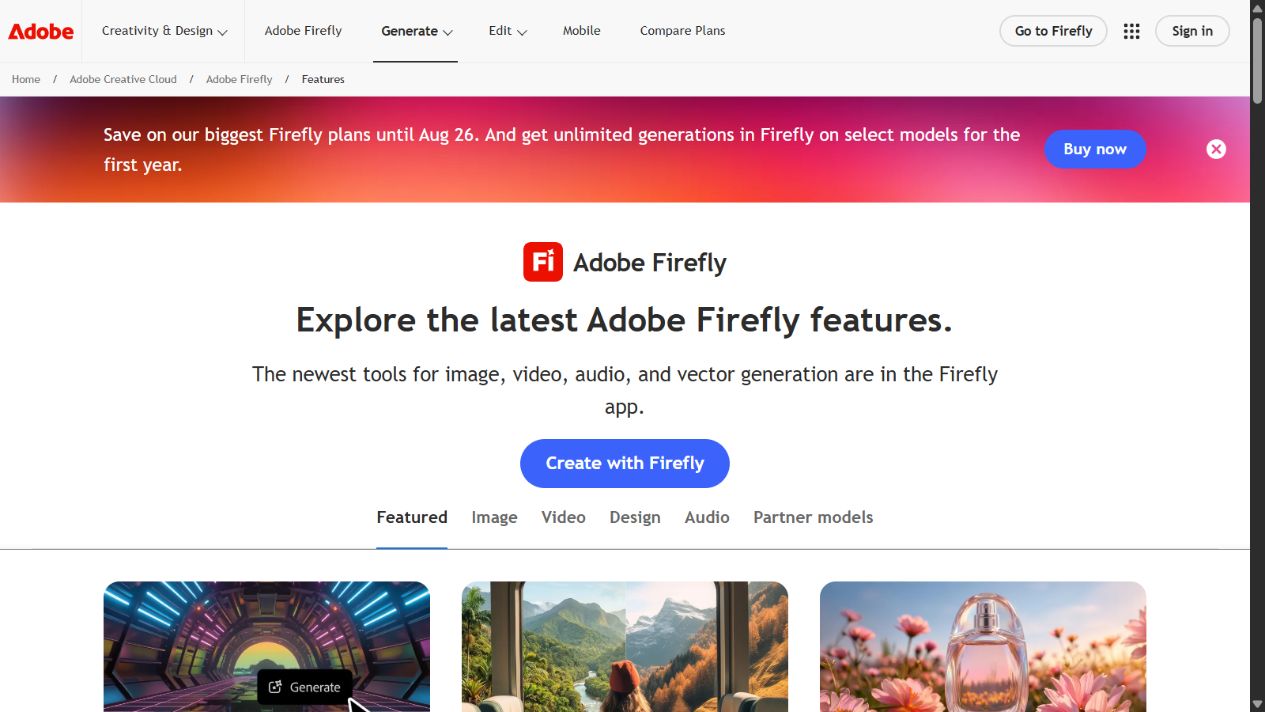
Adobe now presents Firefly as a broader creative AI workspace spanning images, video, audio, design, ideation, and editing. This tutorial concentrates on image generation because it provides the clearest starting workflow for a new user. The exact interface and model list can vary by device, plan, region, and release.
This guide is based on official Adobe product, help, and legal pages checked on August 7, 2026. It does not claim hands-on testing of output quality or speed.
What you need before starting
Prepare four things before opening the generator:
- An Adobe account and eligible access. Firefly features and model availability depend on the account and plan.
- A defined output. Decide whether you need a concept image, campaign asset, presentation visual, background, or production starting point.
- Approved source material. Only upload images or references you are authorized to use.
- A review owner. Assign someone to check accuracy, brand fit, rights, privacy, and final suitability.
Adobe uses generative credits across eligible Firefly and Creative Cloud features. Credit consumption varies by feature, model, and plan. Before a large project, check the credit indicator in the interface and Adobe’s current generative credits overview .
Adobe Firefly workflow at a glance
| Stage | Action | Validation question |
|---|---|---|
| Define | Write down the intended audience, channel, dimensions, and purpose | What job must the image perform? |
| Prompt | Describe subject, action, setting, composition, and mood | Is the request specific without being contradictory? |
| Configure | Select model, aspect ratio, content type, and references | Do the settings match the final channel? |
| Generate | Create a limited set of variations | Is credit use proportionate to the task? |
| Review | Inspect detail, text, people, objects, logos, and context | What would make this unsafe or unusable? |
| Refine | Adjust prompt, references, composition, or edit tools | Does the change solve a defined defect? |
| Export | Download or continue in an Adobe application | Has the final version passed approval? |
Step 1: Choose the right Firefly task
From the Firefly workspace, select the task that matches the intended result. For a first project, use Generate image rather than starting with video, audio, or a complex workflow.
Choose another task only when the job requires it:
- use Generative Fill or prompt-based editing to add, remove, or replace part of an existing image;
- use Expand when an approved image needs a different aspect ratio or additional background;
- use Generate video for text-to-video or image-to-video experimentation;
- use audio or translation features only after checking language, duration, plan, and review requirements;
- use Boards when the team needs shared visual exploration before production.
Our Adobe Firefly features guide explains the wider feature set. Starting with one task prevents the evaluation from becoming a tour of capabilities rather than a useful test.
Step 2: Write a prompt around the actual brief
Adobe’s prompt guidance recommends descriptive, specific language. A practical image prompt should cover:
- subject: what must appear;
- action: what the subject is doing;
- setting: where the scene takes place;
- composition: framing, distance, or arrangement;
- visual direction: photo, illustration, lighting, color, or mood;
- constraints: details that must be present or avoided.
For example, instead of team in an office, use:
Three-person software operations team reviewing a dashboard in a bright modern office, over-the-shoulder composition, natural daylight, restrained blue and teal palette, realistic editorial photography, no visible company logos.
Treat this as a starting brief, not a magic formula. Too many conflicting style words can make the result less predictable. Generate a small set, identify the main defect, and change one or two instructions at a time.
Step 3: Select the model and aspect ratio
Open the model selector and review the available Adobe and partner models. Adobe’s documentation notes that users may need to acknowledge additional information when selecting a non-Adobe partner model.
Do not choose only by novelty. Record:
- model name and version shown;
- whether it is an Adobe or partner model;
- credit consumption displayed;
- output dimensions or resolution;
- plan or regional restrictions;
- terms or notices shown before generation.
Then select the aspect ratio that matches the destination. Adobe documents common image ratios including square, portrait, landscape, vertical, and widescreen options. Choosing the intended ratio before generation is usually more efficient than forcing a major crop later.
Step 4: Set content type and visual controls
Firefly can automatically choose a content type, while Adobe also documents manual options such as Photo and Art in supported workflows. Use Auto when exploring. Select a content type deliberately when the brief requires a more realistic or illustrative direction.
Depending on the selected model, available controls can include:
- visual intensity;
- effects;
- color tone;
- lighting;
- camera angle;
- style reference;
- composition reference.
Settings are not a substitute for a clear prompt. Use them to constrain a specific dimension of the result. If several controls are changed at once, record the configuration so the team can understand why one version worked better.
Step 5: Use references carefully
Adobe documents separate reference controls for style and composition. A style reference influences visual appearance; a composition reference helps guide structure, outline, or depth.
Before uploading a reference:
- confirm the organization has permission to use it;
- remove personal, confidential, or client information;
- document where it came from;
- decide whether the reference should influence style, composition, or both;
- review how strongly the generated result follows it.
Never upload API keys, private files, personal records, unreleased campaign material, or images without appropriate rights. Adobe’s current generative AI guidelines also tell users not to input sensitive personal information unless the product is designed for that use.
Step 6: Generate a controlled set of variations
Select Generate after checking the prompt and settings. The number of returned variations can depend on the chosen model and workflow.
Avoid endless generation. Use a simple test rule:
- generate one batch;
- select the closest candidate;
- write down the largest defect;
- revise the prompt or one control;
- generate one more batch;
- stop if the workflow is not converging.
This protects credits and makes the evaluation measurable. A buyer should track the number of generations required to reach an approvable result, not merely how quickly the first image appears.
Step 7: Review every output before editing
Inspect the full image and zoom into high-risk details. Check:
- text and numbers;
- faces, hands, and body proportions;
- product details and physical plausibility;
- logos, trademarks, uniforms, and recognizable people;
- reflections, shadows, edges, and repeated objects;
- factual or geographical claims implied by the scene;
- whether the output matches the intended audience and brand;
- whether disclosure or Content Credentials requirements apply.
Adobe explicitly warns that generative AI outputs can be inaccurate or misleading. A polished image is not automatically a correct or publishable image.
Step 8: Refine or edit the strongest result
Adobe documents quick actions for modifying generated variations, including prompt-based editing, fill, remove, upscale, generating similar images, and using an output as a reference. Available options can change by model and plan.
Choose the smallest edit that solves the problem:
- use Remove for an unwanted object;
- use Fill or prompt-based editing for a localized replacement;
- use Expand to adapt the canvas to another channel;
- use Upscale only after the composition is approved;
- open the asset in Photoshop or Express when manual production control is needed.
Keep the original output and the final approved file separate. Record material edits so reviewers know which decisions came from generation and which came from later production work.
Step 9: Export with an approval record
Before downloading or handing the asset to another Adobe application, create a compact record:
| Field | Record |
|---|---|
| Project and owner | Campaign or task name and accountable reviewer |
| Date | Generation and approval dates |
| Model | Exact model shown in Firefly |
| Prompt | Final prompt used |
| References | Source and permission status |
| Settings | Ratio, content type, style, composition, and other material controls |
| Credit use | Amount displayed for the approved generation |
| Review | Accuracy, rights, privacy, brand, and quality decision |
| Destination | Where and how the asset will be used |
This record is more useful than saving dozens of unnamed downloads. It supports reproducibility, governance, and later review.
Common Firefly problems and what to try
The result ignores part of the prompt
Remove competing instructions, put the essential subject and action first, and simplify style language. Change one variable at a time.
The composition is wrong
Use an authorized composition reference or describe framing more explicitly. Adobe documents a strength control for supported reference workflows.
The style is inconsistent
Use a permitted style reference and record the strength setting. For repeated brand work, test whether a governed Adobe team or enterprise workflow is more appropriate than ad hoc prompting.
Generation fails
Adobe’s troubleshooting guidance identifies possible causes including insufficient credits, prompts that conflict with usage guidelines, and temporary model capacity. Check the displayed message, available credits, selected model, and prompt before retrying.
Credit use is higher than expected
Stop generating and check the current plan and model consumption. Our Adobe Firefly pricing guide explains why model and feature selection affect cost.
A practical business pilot
Run a narrow pilot before adopting Firefly broadly:
- choose one recurring asset type;
- use approved source material and a real brief;
- compare the current workflow with Firefly-assisted production;
- record generations, credits, editing time, review time, and rejection reasons;
- evaluate brand consistency and final usability;
- document data, rights, and approval controls;
- decide whether the workflow should be adopted, revised, or rejected.
Use the Adobe Firefly review for buyer fit, Adobe Firefly pros and cons for trade-offs, Adobe Firefly vs ChatGPT for product positioning, and the broader AI tools evaluation guide for procurement controls.
Official sources checked
- Adobe Firefly Help
- Generate images using Imagen
- Set content type
- Set styles for image generation
- Match image composition to a reference
- Modify generated images
- Generative credits overview
- Firefly generation troubleshooting
- Adobe generative AI user guidelines
Final takeaway
The effective way to use Adobe Firefly is to treat it as a controlled creative workflow: define the brief, select the appropriate model and settings, generate a limited set, review every detail, refine deliberately, and record the approved result. The quality of the decision process matters more than the number of images generated.
Frequently asked questions
How do beginners use Adobe Firefly?
Start with Generate image, write a specific prompt describing the subject, action, setting, composition, and mood, choose a model and aspect ratio, generate variations, review the outputs, and refine the prompt or reference settings before downloading.
Does Adobe Firefly use generative credits?
Yes. Adobe uses generative credits for eligible Firefly and Creative Cloud generative features. Credit use varies by feature, model, output, and plan, so check the consumption indicator and current plan documentation before generating at scale.
Can Adobe Firefly edit generated images?
Yes. Adobe documents options including prompt-based editing, generative fill, remove, expand, upscale, and opening outputs in supported Adobe applications. Available actions depend on the workflow and plan.
Can businesses publish Firefly output without review?
They should not. Teams should review generated output for factual accuracy, unwanted artifacts, brand fit, privacy, third-party rights, disclosure requirements, and the terms that apply to the selected Adobe or partner model.